Reading Time: 12 Minutes
Difficulty Level: Beginner to Intermediate
Reviewed By: FinanceInfoIn Editorial Team
Table of Contents
- The Silent Speed Killers Inside Your Machine
- Quick Summary
- Key Takeaways
- The Real Cost of a Slow Computer: A Financial Breakdown
- Understanding What Runs Behind the Scenes
- System Processes vs. Background Apps: The Big Confusion
- The Honest Pros and Cons of Killing Tasks
- Step-by-Step Tactics to Reclaim Your System Speed
- Targeting Sneaky Startup Programs
Quick Summary
Your computer is likely running dozens of invisible software programs right now, eating up memory and draining battery life. These hidden background processes cause massive screen lag, loud fan noises, and frustrating application crashes. By learning how to identify and safely disable these resource thieves, you can instantly bring your old machine back to life. This guide will show you exactly how to clean up your system without accidentally deleting anything important.
Key Takeaways
- Hidden background software is the number one cause of sudden computer freezing and lag.
- Not all background tasks are bad; knowing which ones to touch is highly important.
- Disabling heavy startup applications provides the fastest boost to your daily computer performance.
- Regularly checking your built-in activity monitors can save you from buying a brand-new device too soon.
The Silent Speed Killers Inside Your Machine
You sit down with a hot cup of coffee, completely ready to crush your morning tasks. You click open your main software, and suddenly, absolutely nothing happens. The mouse cursor turns into that dreaded spinning wheel of death.
You can hear the internal fan spinning up, sounding exactly like a jet engine preparing for takeoff. We have all been there, staring at a frozen screen while silently praying our unsaved work somehow survives. The anxiety that bubbles up in your chest during that frozen moment is incredibly real and exhausting.
I once lost an entire morning's worth of client work because a hidden cloud-sync app decided to update itself. It forced my entire system into a complete freeze right before a major deadline. My pocket was incredibly tight back then, and that silly software glitch almost cost me a high-paying client.
That raw feeling of helplessness is exactly why taking control of your machine is so deeply necessary. You paid good money for your device, and it should work for you, not against you. When hidden background programs steal your processor's attention, your daily productivity simply hits a brick wall.
These unseen applications constantly check for updates, sync files, or monitor your habits without asking for permission. They slowly drain your system memory, making everyday tasks feel like walking through thick mud. The mental toll of waiting five extra seconds for every single click eventually ruins your creative flow.
The Real Cost of a Slow Computer: A Financial Breakdown
Let us look at how much this lag actually costs a normal working professional in the real world. Meet David, a freelance graphic designer who charges his clients $40 per hour for his creative services.
David’s computer is packed with unmanaged background software, causing his design applications to lag heavily. Because of this slow processing speed, he wastes about 45 minutes every single day just waiting for files to load and save.
If David works 20 days a month, those 45 minutes add up to 15 hours of completely wasted time. At his $40 hourly rate, that background software lag is silently robbing him of $600 every single month! By simply taking ten minutes to optimize his background processes, he essentially gives himself a massive pay raise.
Understanding What Runs Behind the Scenes
Think of your computer as a highly popular restaurant operating during the busy dinner rush. The programs you actively use, like your web browser or video player, are the servers out in the dining room interacting with guests.
However, the background processes are the cooks, dishwashers, and inventory managers working silently in the kitchen. If you have too many staff members cramped in the kitchen doing unnecessary tasks, the entire restaurant slows down.
Your computer's CPU and RAM can only handle a specific number of tasks at any given moment. When you have unused chat applications and game launchers running silently, they steal valuable space from your active work. Closing these unnecessary kitchen workers allows your main applications to breathe and function normally.
System Processes vs. Background Apps: The Big Confusion
When people first open their system monitor, they usually panic at the sheer number of items running. They often confuse essential system processes with unnecessary background applications, which leads to major problems.
If you randomly start forcing things to close, your computer might crash immediately. You need to know the clear difference between a program you installed and a program your operating system needs to survive.
As you can see from the table above, identifying the source of the task is your best defense. Never touch anything that says it belongs to the core operating system unless you know exactly what it does.
The Honest Pros and Cons of Killing Tasks
Before we start cleaning up the system, we need to set realistic expectations about what this actually achieves. Many online forums promise that closing background apps will turn a ten-year-old laptop into a supercomputer.
That is simply not true, but the real benefits are still highly noticeable for daily users. Below is a totally honest look at what happens when you start forcing background applications to stop.
The Pros:
- Instantly frees up active RAM, giving your current task a massive speed boost.
- Stops your internal fan from spinning loudly and reduces overall computer overheating.
- Significantly extends your laptop battery life while working away from a charger.
- Prevents random pop-up notifications from interrupting your deep focus sessions.
The Cons:
- Some applications will take slightly longer to open the next time you need them.
- If you close a cloud storage app, your files will not sync until you manually reopen it.
- Force-closing the wrong system task can force your computer to restart instantly.
Step-by-Step Tactics to Reclaim Your System Speed
Now that we understand the rules of the game, it is time to take out the digital trash. The first place you want to look is exactly where your computer starts its day.
When you press the power button, a massive queue of programs immediately fights to load first. This is called the startup sequence, and it is usually the biggest bottleneck for computer performance.
Pro Tip: I used to think leaving my design software in the startup menu saved me time in the morning. I quickly realized it was making my entire system unresponsive for the first ten minutes of my day. By removing heavy apps from my startup list, my computer now boots up completely in under fifteen seconds.
Targeting Sneaky Startup Programs
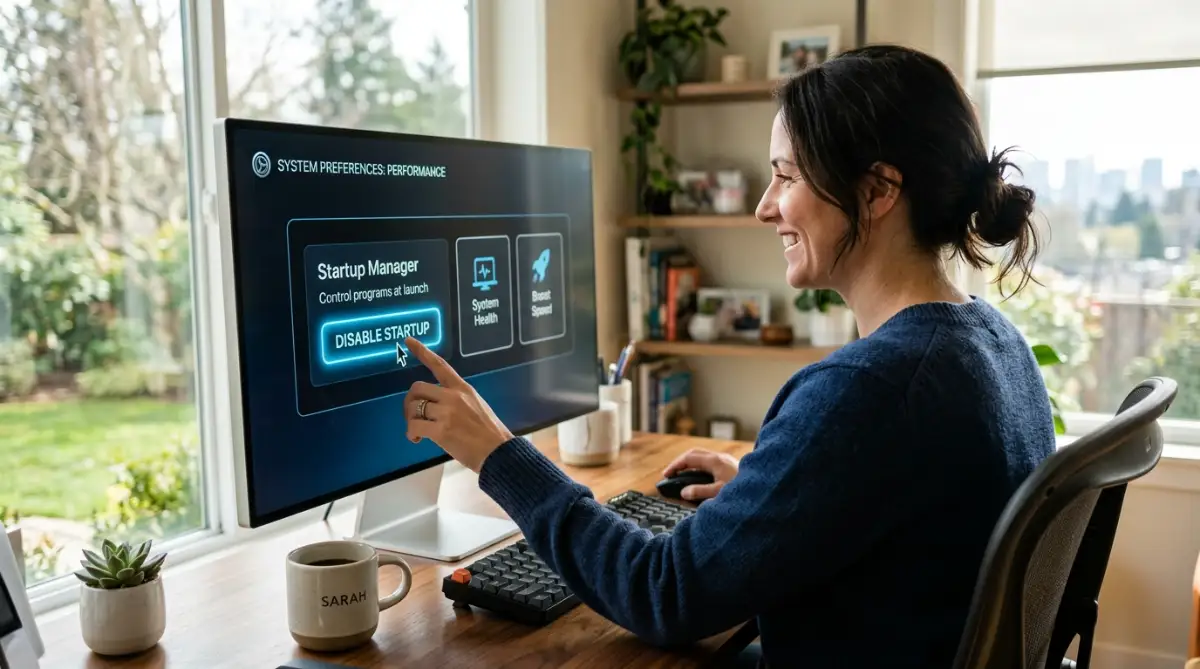
For Windows users, simply right-click on the taskbar at the bottom of your screen and select Task Manager. Once that window opens, click on the tab specifically labeled "Startup apps" on the left side.
Here, you will see a list of every single program that tries to launch when you turn on your machine. You will likely find apps in this list that you have not used in several months.
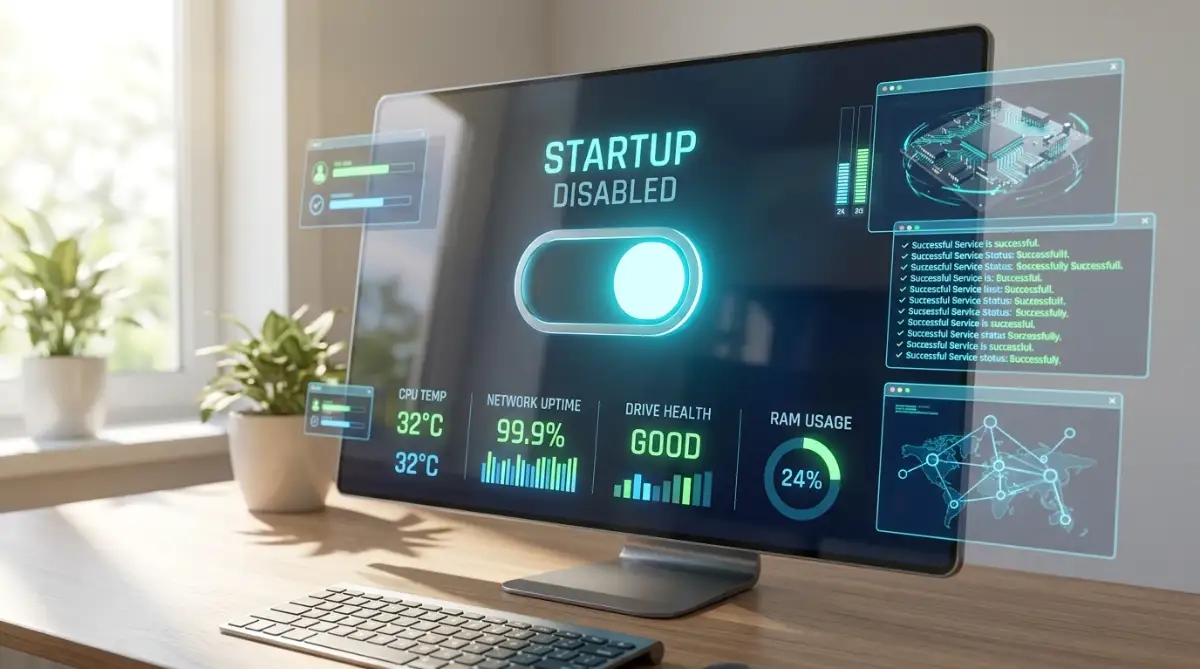
Look at the column labeled "Startup impact" to see which programs are hurting your system the most. Simply right-click on the heavy, unnecessary programs and select "Disable" to stop them from launching automatically. Do not worry, this does not delete the program; it just stops it from running until you manually click its icon.
Mac users can achieve the exact same thing by clicking the Apple menu and opening System Settings. From there, navigate to General, and then click on Login Items. You can simply highlight any useless application in the list and click the minus button to remove its startup privileges.
Hunting Down Active Memory Hogs
Sometimes your computer boots up fine, but it suddenly starts crawling in the middle of the afternoon. This usually means a background program has decided to run a heavy scan or download an update.
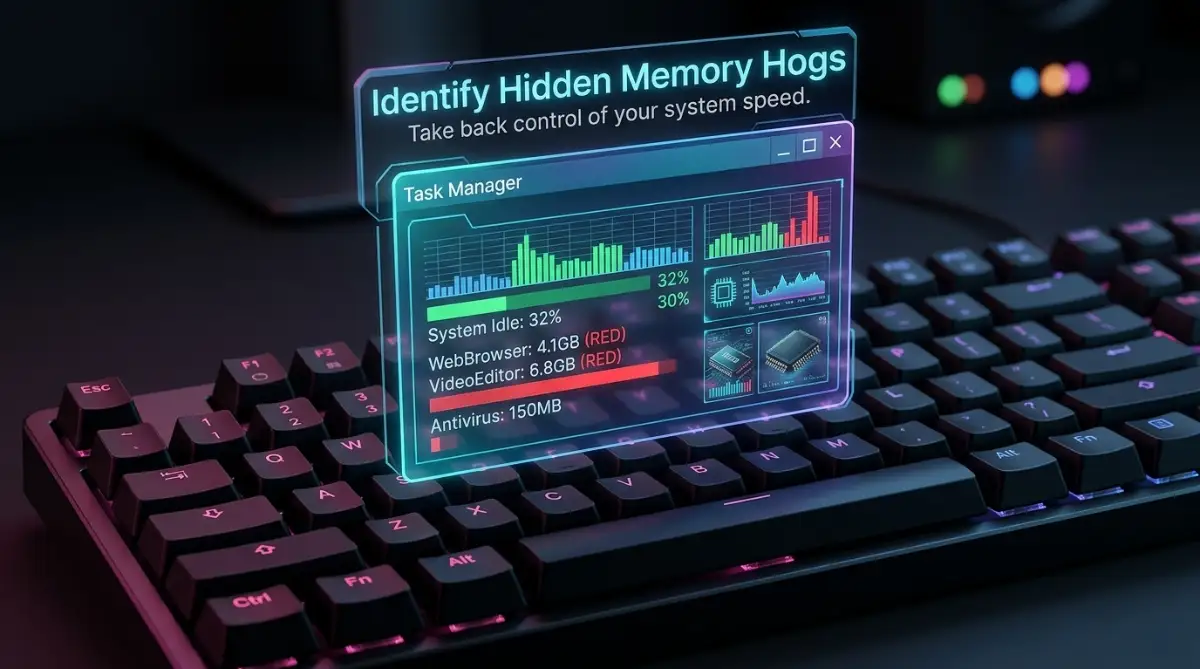
To catch these active thieves in the act, you need to sort your running processes by their resource usage. In the Windows Task Manager, click on the "Memory" column header at the top of the Processes tab.
This simple click will automatically push the most demanding software right to the very top of your screen.
If you see a program at the top of this list that you are not actively using, it is time to act. Right-click the offending software and choose "End task" to immediately cut off its resource supply.
Insert highly engaging video intro text here:
If you are more of a visual learner, watching someone navigate these menus can make the process incredibly clear. Check out this excellent, easy-to-follow video tutorial that walks you through finding and disabling these sneaky memory hogs
Managing Web Browser Extensions
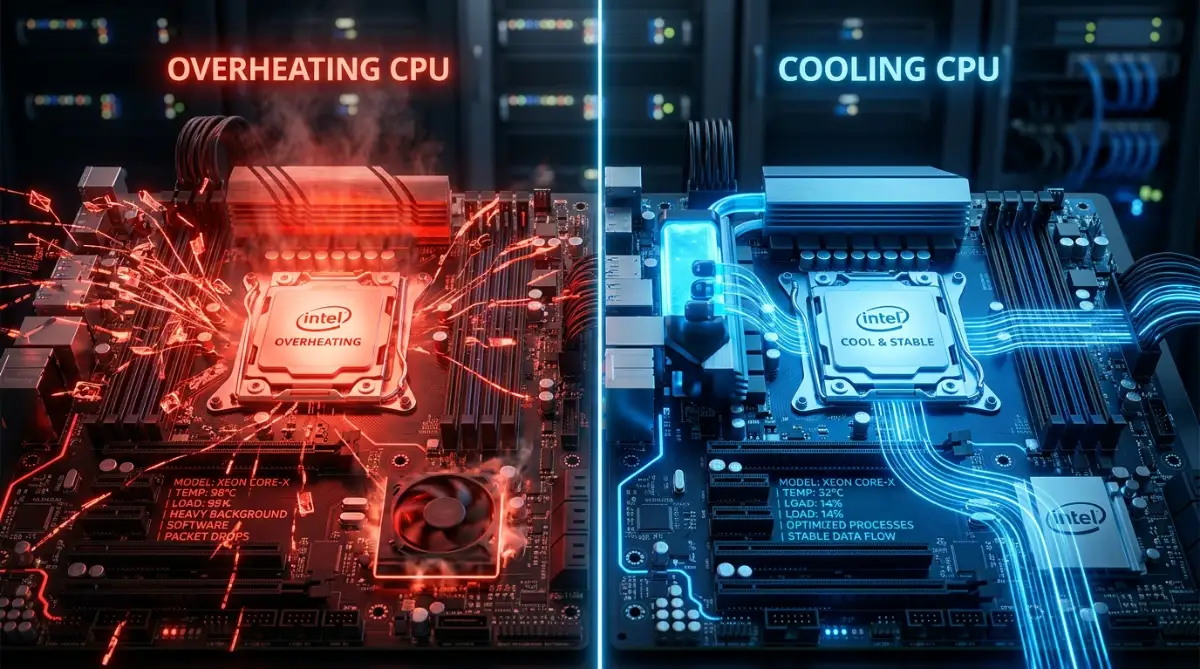
Many people completely forget that their web browser is actually running its own mini operating system. Every single extension you install acts like a separate background process that eats up your memory.
If you have ten extensions installed for things like grammar checking, coupon finding, and ad blocking, your browser is carrying a massive burden. Even when you are just reading a simple text article, those extensions are actively scanning the page.
You need to routinely open your browser settings and completely remove extensions you no longer use daily. Turning them off temporarily is okay, but deleting them entirely is the best way to optimize computer performance.
The Danger of Third-Party Optimization Tools
When people get desperate for speed, they often search the internet for magical "PC cleaner" software. These tools promise to optimize your computer performance with just one simple click.
Ironically, these optimization programs must constantly run in the background to monitor your system. They actually become the exact problem they promised to cure.
Instead of downloading more software to fix a software problem, trust the tools already built into your machine. Task Manager and Activity Monitor are incredibly powerful once you learn to read their basic columns.
Next-Level Tactics for Permanent System Speed
Now that you know how to identify the heavy memory hogs, we need to talk about long-term maintenance. Cleaning up your background processes once is great, but software has a sneaky way of turning itself back on. Many applications automatically reset their permissions after a major software update.
To keep your machine running smoothly every single month, you need to understand task prioritization. Your operating system actually allows you to tell the processor which apps deserve the most attention. When you run heavy editing software or large spreadsheets, you can manually push them to the front of the line.
Pro Tip: Setting your main work application to "High Priority" in the Task Manager details tab forces your computer to give it maximum processing power over any background task.
You also want to look closely at hardware acceleration inside your daily applications. Programs like Google Chrome, Discord, and Spotify use hardware acceleration to borrow power from your graphics card. While this sounds helpful, it often creates massive background lag if you have an older machine. Turning this feature off in the settings of individual apps usually solves weird screen flickering and random freezing.
You can also leverage built-in automation to keep things tidy. Just like learning how to use AI to automate repetitive daily tasks at work, you can set your computer to automatically put unused apps to sleep. Both Windows and Mac have modern battery-saving modes that automatically pause heavy background syncs when you are unplugged.
To give you a better idea of what to prioritize, look at how different tasks behave in the background.
 Dangerous Missteps When Managing Background Software
When people get totally fed up with a lagging computer, they often take extreme and dangerous measures. The frustration takes over, and they start deleting system files they do not fully understand. I have seen highly intelligent professionals accidentally destroy their operating systems just because they wanted a faster web browser.
The most common trap is paying for aggressive "registry cleaner" software. These programs claim to hunt down hidden background errors, but they usually delete essential communication files between your apps. Once your registry gets corrupted, your computer will completely refuse to boot up, forcing you to wipe the entire hard drive.
Another massive blunder is blindly force-closing processes with the word "System" or "Host" in the title. For example, Windows runs a background task called 'svchost.exe' which literally keeps your internet and audio connected. If you kill this specific background process just because it uses a little memory, your screen will likely turn black immediately.
People also completely misunderstand how modern software uses system memory. They look at their activity monitor, see their RAM usage at 80%, and completely panic. In reality, modern operating systems are designed to use available RAM to cache files for faster loading.
Let us clear up some of the biggest misunderstandings regarding system speed and background tasks.
You need to rely on trusted documentation when you are unsure about a specific software name. If you see a weird background task, searching the National Institute of Standards and Technology (NIST) software database can help you identify if it is a legitimate program or malware.
Your Immediate System Clean-Up Action Plan
Reading about system optimization is completely useless unless you actually take action today. You do not need to be an IT expert to make your computer run faster right now.
You just need a clear, safe approach to removing the digital friction holding your machine back. Just like setting up a clean workspace helps you focus, a clean operating system helps your processor work efficiently.
Quick Action Checklist
- Restart your computer completely before making any changes.
- Open your system settings and locate the Startup or Login Items menu.
- Turn off hardware acceleration in your web browsers and chat apps.
- Uninstall at least three programs you have not opened in the last six months.
- Empty your computer's digital trash bin to free up local cache space.
The Exact Step-by-Step Execution Guide
Step 1: Perform a Clean System Restart
Before you hunt for background apps, save your work and restart the machine completely. A fresh reboot clears out temporary memory leaks and gives you a true baseline of what runs automatically.
Step 2: Audit Your Active Task Manager
Open your Task Manager (Windows) or Activity Monitor (Mac). Sort the list by "Memory" usage to see exactly which apps are pulling the most weight right at this very moment.
Step 3: Disable Sneaky Startup Launchers
Navigate directly to the Startup tab. Look for game launchers, music players, and cloud storage apps. Right-click and change their status to "Disabled" so they stop starting by themselves.
Step 4: Prune Your Browser Extensions
Open your main web browser settings and find the extensions menu. Completely remove any coupon clippers, old PDF readers, or grammar checkers that you do not use on a daily basis.
Step 5: Monitor the Results
Work normally for the next two hours. Notice how much faster your applications open and whether your computer fan stays completely quiet.
To help you measure your success, here is a breakdown of what you should expect after cleaning up your system.
Required Preparation Checklist
Before you start disabling things, you need to have a few basic safety measures in place.
- Administrator Access: You need the main admin password for your computer to disable certain system-level apps.
- A System Restore Point: Always create a quick backup point just in case you accidentally disable your audio or mouse drivers.
- List of Essential Software: Write down the exact names of the VPNs or security tools you absolutely need for your daily work.
- External File Backup: Save your current active projects to a USB drive so nothing gets lost if the system requires a hard reboot.
By having these basic things ready, you can optimize your machine with complete peace of mind. Even if you make a tiny mistake, your files and progress remain entirely safe.
Taking Back Control of Your Digital Workspace
You no longer have to accept a slow, freezing computer as a normal part of your workday. By simply understanding what runs behind the scenes, you have taken a massive step toward better daily productivity.
Every single time you close an unnecessary background application, you give your machine room to breathe and perform. It is exactly like clearing off a messy desk; suddenly, you have the space to do your absolute best work. You do not need to buy expensive software or a brand-new laptop to get a smooth, responsive experience today.
My own work life completely changed when I finally stopped letting random apps control my system memory. I used to feel so angry staring at a frozen screen, but now my computer feels like a highly tuned machine. Take ten minutes today to disable those sneaky startup programs, and you will immediately feel the amazing difference.
Which background app was secretly using up all your computer memory today? Let me know in the comments below!
Most Asked Questions About Managing System Resources
Why does my computer fan get so loud for no reason?
Your fan gets loud because the internal processor is working incredibly hard and generating heat. This usually happens when hidden background software starts running complex updates or scans without asking you first.
Is it safe to end tasks I do not recognize?
No, it is not completely safe to guess. If you do not recognize a task, search for its name online before closing it to avoid crashing your system.
Will disabling startup apps delete my personal files?
Not at all. Disabling a startup app only stops the program from opening automatically when you turn on the computer. Your files and the software itself remain totally safe on your hard drive.
How much RAM do I actually need for smooth performance?
For basic web browsing and typing, eight gigabytes of RAM is usually enough. If you run multiple heavy applications or use complex machine learning tools, you should aim for sixteen to thirty-two gigabytes.
Does keeping multiple browser tabs open slow down my computer?
Yes, every single open tab acts like a separate background process. If you have fifty tabs open, your browser is silently draining massive amounts of memory away from your main work.
Should I leave my computer on all night?
It is generally better to shut your computer down or put it to sleep overnight. A fresh restart clears out the temporary memory and stops background apps from running endlessly.
Why does my cloud storage app make my internet so slow?
Cloud apps constantly scan your folders and upload small background changes to their servers. Pausing the sync feature during your working hours will instantly improve your local internet speed.
Do ad blockers use a lot of system memory?
Some poorly optimized ad blockers actually use more memory than the ads they are trying to block. Stick to highly rated, lightweight extensions and remove the ones you do not actively use.
Can managing background apps fix video game lag?
Absolutely. Games require maximum processor attention to run smoothly. Closing background chat apps, extra launchers, and browser windows frees up raw power for a much better gaming experience.
How often should I check my background processes?
Checking your task manager once a month is a great healthy habit. It helps you catch new software updates that secretly turned their background permissions back on.
Trusted Legal Resources
- Federal Trade Commission (FTC) - Consumer Privacy
- Cybersecurity & Infrastructure Security Agency (CISA)
- Microsoft Legal Resources & Privacy
- Apple Legal - Software License Agreements
- Electronic Frontier Foundation (EFF)
- National Institute of Standards and Technology (NIST)
Disclaimer
The information provided on FinanceInfoIn is for general educational and informational purposes only and does not constitute professional IT support, technical repair advice, or guaranteed software solutions. While we strive to provide accurate and up-to-date content, computer systems vary significantly, and altering system settings, disabling processes, or modifying software configurations carries inherent risks, including potential data loss or system instability. You should always back up your essential data and consult with a certified technical professional before making significant administrative changes to your devices. Neither the author nor FinanceInfoIn will be held liable for any accidental damage, loss of data, or hardware failures resulting from the use or application of this information. Always follow the official guidelines provided by your operating system manufacturer.
About the Author
Reviewed by Mithun Halder (Personal Finance & SEO Expert) & The FinanceInfoIn Editorial Team
The FinanceInfoIn Editorial Team researches personal finance, investing, insurance, mortgages, cryptocurrency, and consumer financial topics. Every article is carefully reviewed to provide clear, practical, and trustworthy educational information based on credible sources and industry best practices.
©2026 FinanceInfoIn. All rights reserved.