Reading Time: 15 Minutes
Difficulty Level: Beginner to Intermediate
Reviewed By: FinanceInfoIn Editorial Team
Table of Contents
- Quick Summary
- The Breaking Point: My Nightmare Screen
- Key Takeaways
- Blindly Ignoring Hardware Compatibility
- Confusing Advanced Systems With Beginner Options
- The Hidden Trap of Everyday Software
- Rushing Into a Permanent Installation
- Misunderstanding the Desktop Experience
- The Real Cost of Neglecting Community Support
Quick Summary
Switching to an open-source operating system offers amazing freedom and privacy, but making the wrong choice can lead to a broken computer and lost data. Many beginners fail because they ignore hardware compatibility, pick overly complex versions, or forget to check if their daily apps will actually work. By understanding your specific needs and testing things out safely, you can enjoy a smooth, stress-free transition. This guide breaks down the most dangerous traps and how to completely avoid them.
The Breaking Point: My Nightmare Screen
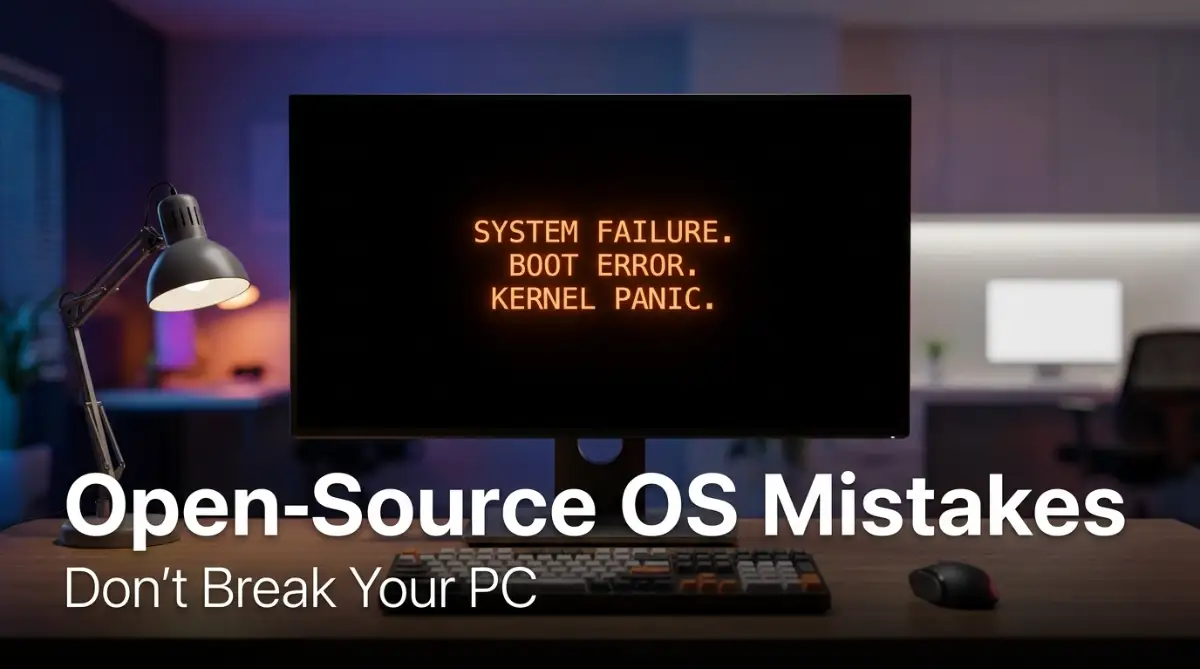
I stared blankly at the completely black monitor, my heart sinking into my stomach. It was 2:00 AM on a Tuesday, and I had a massive freelance project due in exactly six hours. I had just tried replacing my old, sluggish system with a shiny new open-source alternative I read about online.
Instead of the blazing-fast performance I was promised, my computer sounded like a jet engine preparing for takeoff, and nothing was responding. I had zero backups. I felt completely paralyzed, realizing my attempt to be tech-savvy might just cost me my biggest client.
That night taught me a harsh lesson about jumping into new technology blindfolded. When you decide to change the core brain of your computer, one wrong move can turn your expensive machine into a useless brick of metal.
People are moving away from traditional software options because they want better privacy, more control, and less annoying bloatware. The promise of a free, community-driven system is incredibly tempting. But the internet rarely tells you about the hidden traps waiting for regular users who just want to get their work done.
Key Takeaways
- Always test a new operating system using a live USB drive before making permanent changes to your hard drive.
- Not all Wi-Fi cards, printers, and graphics processing units play nicely with open-source software.
- Picking a system designed for advanced developers is the fastest way to get frustrated and quit.
- You must verify that alternative versions of your daily apps exist and function properly.

Blindly Ignoring Hardware Compatibility
One of the biggest blunders you can make is assuming your laptop will magically accept any new operating system you throw at it. Think of it like trying to put diesel fuel into a regular gas engine.
Just because the software is free does not mean it has the right instructions to talk to your specific physical components. Many manufacturers build their physical parts specifically for dominant commercial software. They simply do not release the secret code needed for open-source developers to make things run smoothly.
You might successfully install the system, only to discover your Wi-Fi will not turn on. Or worse, your expensive graphics card might barely function, making the screen lag every time you move your mouse.
Real-Life Case Example: The Cost of Missing Drivers
Let us look at David, a freelance video editor who earns about $40 an hour. He got frustrated with forced background updates on his regular computer and decided to switch to an open-source system. He did not check if his specific Nvidia graphics card was compatible. After spending 4 hours trying to force the installation, he spent another 8 hours battling terminal commands to fix his flickering screen. Finally, he gave up and spent 3 hours reinstalling his original system. He lost 15 hours of workable time. That simple lack of research cost David $600 in lost freelance revenue, plus an unbelievable amount of unnecessary stress.
To prevent this financial and emotional drain, always run a hardware audit. Search online forums using your exact laptop model name alongside the system you want to install.
Expert Tip: Before formatting your hard drive, plug in an ethernet cable. If your Wi-Fi does not work right out of the box, having a hardwired connection will allow you to download the missing pieces easily.
Confusing Advanced Systems With Beginner Options
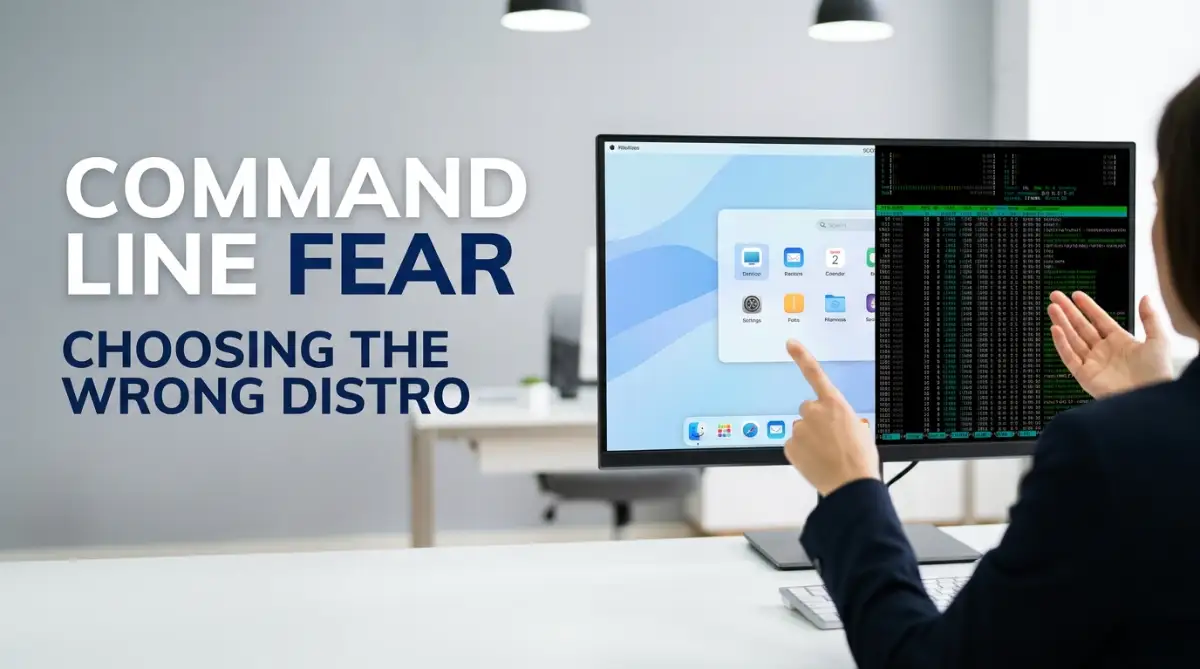
New users often search for the "best" open-source system and stumble upon recommendations meant for hardcore programmers. This is a massive trap.
There are hundreds of different flavors, often called distributions or distros. Some are designed to hold your hand and look exactly like what you are already used to. Others require you to build everything from scratch using complex text commands.
Trying to learn a highly technical system while just trying to check your email is a recipe for disaster. You will quickly feel overwhelmed and assume all open-source options are terrible.
Confusing Alternative Comparison: Beginner vs. Advanced
People frequently confuse systems that sound similar but serve entirely completely different audiences. Let us break down the exact difference so you do not accidentally install a nightmare.
Start your journey with something deeply forgiving. Systems built specifically for newcomers have large software stores where you can install apps with a single click.
Watch This Before You Install Anything
If you are still confused about which version to pick, you need to see how they look in real life before downloading them. This visual breakdown explains exactly which versions are safest for absolute beginners.
The Hidden Trap of Everyday Software
We often forget that an operating system is just a vehicle to run our apps. If your vehicle cannot carry your luggage, it is useless to you.
Assuming your favorite daily programs will naturally work on a new platform is a very painful mistake. Major commercial tools like Adobe Photoshop, Microsoft Excel, and heavily protected multiplayer games often completely block open-source platforms.
You might think you can just find workarounds or force them to run through compatibility layers. While sometimes possible, this usually results in slow performance, frequent crashing, and missing features.
My Personal Realization (Pro Tip):
I used to waste hours trying to force heavy commercial design apps to run on my open-source setup using complicated emulators. It always ended in crashes and corrupted files. I finally realized that if my job absolutely requires a specific proprietary tool, I need to keep my old operating system for that exact task. Do not force a square peg into a round hole; learn the native alternative apps instead.
You have to be completely honest about your software habits. Are you willing to learn a totally new photo editor? Can your clients accept documents in a slightly different format?
Honest Pros & Cons Box: Ditching Commercial Software
- The Pros:
- Zero monthly subscription fees to pay.
- No targeted advertisements inside your menus.
- Incredible privacy since your data is not being harvested.
- Apps run faster because there is no hidden background tracking.
- The Cons:
- Industry-standard files might look slightly distorted.
- Cloud collaboration with coworkers becomes much harder.
- Steep learning curve to memorize new keyboard shortcuts.
- Customer service does not exist for free tools; you rely on forums.
Rushing Into a Permanent Installation
Impatience destroys more computers than actual viruses. When people finally decide to switch, they often wipe their entire hard drive without testing the waters first.
This usually happens on a weekend. You get excited, click the "Erase Disk" option, and suddenly realize you forgot to back up your family photos from three years ago. There is no undo button for a formatted drive.
You should always use a "Live USB" method first. This brilliant feature lets you run the entire new operating system directly from a thumb drive without touching your actual computer storage.
You can test your speakers, connect to your Bluetooth headphones, and browse the web safely. If anything feels broken or weird, you just unplug the USB, restart the computer, and your old familiar setup is right back where you left it.
If you do decide to keep both systems side-by-side on the same computer, be extremely careful. Sharing a hard drive requires splitting the storage space perfectly. One wrong click during the partitioning phase will overwrite everything you own.
Misunderstanding the Desktop Experience
Unlike traditional computers where you are stuck with one specific look, open-source systems let you swap out the entire visual interface. This visual layer is called a Desktop Environment.
Choosing the wrong visual environment will make your computer feel confusing and slow. Some interfaces are built to be heavily animated, glossy, and highly modern. If you put that on an older, weaker laptop, the machine will completely freeze up.
Other environments are designed to be ultra-lightweight and simple. If you install a simple one on a powerful gaming rig, you are entirely wasting your computer's true potential.
Expert Tip: If you want your new screen to look exactly like the traditional software you used for the last decade, search specifically for interfaces described as "traditional panel layouts". This keeps the start menu exactly where your muscle memory expects it to be.
The Real Cost of Neglecting Community Support
When you buy a commercial computer, you can call a toll-free number if things break. In the open-source world, you rely entirely on the kindness of strangers on the internet.
A massive mistake is picking an obscure, tiny project just because it looks cool on a blog post. If only two hundred people in the world use that specific system, who are you going to ask for help when your microphone stops working?
Always start with the most popular, widely used communities. Huge communities have massive, highly detailed wikis and friendly forums designed for absolute beginners. Every problem you will encounter has already been solved by someone else ten years ago.
You just need to know how to search for it properly. When asking for help online, never just say "it is broken." Always provide your exact computer model, the version of the system you are using, and the exact error message on your screen. The community is incredibly helpful if you show them you are willing to learn.
Making the jump to free software is an amazing journey that breathes fresh life into old hardware. By avoiding these common traps, you protect your data, save your sanity, and gain total control over your digital life. Take your time, do the research, and enjoy the true freedom of a machine that finally respects your choices.
Mastering Your New Open-Source Setup Like a Pro
You survived the installation process, and your new desktop is finally staring back at you. Now what? The real magic happens when you understand how to maintain your new setup for the long haul.
A lot of people treat their newly installed open-source system exactly like their old commercial computer. That is a quick way to run into slow performance and messy file structures.
Instead of downloading installation files from random websites, you need to use your system's built-in software manager. Think of it as a highly secure, verified grocery store for your applications. The community thoroughly checks every single program in this store for viruses before you even see it.
Pro Tip: Always set up automated system snapshots before running major software updates. If an update accidentally breaks your audio drivers, you can simply roll back your entire computer to exactly how it was yesterday with just three clicks.
Let us talk about the terminal interface. It looks intimidating, like something out of a hacker movie from the nineties. However, it is actually your best friend for getting daily work done quickly.
Instead of clicking through ten different visual menus to install a web browser, you just type one short sentence. This exact concept applies when you learn how to use ai to automate repetitive daily tasks at work. You give the computer a direct text command, and it handles the heavy lifting instantly behind the scenes.
Table 1: Graphical Clicks vs. Terminal Efficiency
When you master a few basic commands, you completely change how you interact with your hardware. You stop acting as a passive user and become the actual administrator of your machine.
The Trap of Immediate Customization
I once spent an entire Saturday trying to make my new desktop look exactly like a futuristic spaceship interface. I eagerly downloaded random custom themes and icon packs from unofficial websites.
By Sunday morning, my computer would not turn on properly. I had completely broken the visual interface by mixing incompatible display managers and outdated community themes.
This brings us to the most dangerous phase for newcomers: the honeymoon period. You feel invincible and start changing core system settings without reading the official foundation documentation first.
Common Mistakes People Make After Migration:
- Adding Unverified Software Sources: Adding random personal repositories from the internet causes severe dependency conflicts. Your computer gets confused about which version of an app it should prioritize.
- Abusing Root Permissions: Running everyday commands as an administrator is incredibly dangerous. A simple typing error could wipe your entire hard drive instantly.
- Ignoring File System Formats: Assuming your old external hard drives will perfectly sync with your new operating system.
Let us use an analogy to understand file systems. Imagine trying to read a book written in Spanish when you only speak Japanese. That is exactly what happens when a Windows machine tries to read an open-source formatted hard drive.
Table 2: Understanding Cross-Platform File Formats
You might also be excited to run heavy artificial intelligence image generators locally on your new private setup. If you do not have the exact proprietary graphics drivers installed, those generation tools will crash immediately.
Learning how to write effective prompts for flawless ai images every time will not help you if your computer cannot communicate directly with your graphics card. Similarly, understanding how machine learning works step by step requires setting up highly specific coding environments that beginners often configure incorrectly.
Myth and Reality: Open-Source Operating Systems
The Exact Step-by-Step Execution Guide
If you are ready to make the jump, you need a safe plan. Winging it will almost certainly result in lost personal files.
Step 1: Audit Your Daily Workflow
Write down every single application you use for a full week. Check community databases to see if those exact apps have native open-source versions or acceptable free alternatives.
Step 2: Create a Rescue Drive
Buy a brand new, empty 16GB USB flash drive. Use a trusted flashing tool to copy your chosen open-source system onto this drive. Do not touch your main hard drive yet.
Step 3: The Live Environment Test
Plug the USB into your powered-off computer and turn it on. Boot directly from the USB to enter the "Live Environment." Test your Wi-Fi, bluetooth headphones, printer, and trackpad gestures.
Step 4: Backup Everything Twice
If the live test is successful, copy all your documents, photos, and passwords onto a separate external hard drive. Upload a second copy to a secure cloud service just in case the physical drive fails.
Step 5: The Permanent Wipe
Launch the installer from your USB drive and select the option to erase the entire disk. Follow the on-screen prompts to set up your username, password, and time zone.
Required Document & Preparation Checklist
Before you even think about modifying your computer's boot sequence, gather these items. Missing any of these can leave you stranded with a broken machine.
- A printed list of your computer's specific hardware components (Wi-Fi card model, Graphics card model).
- Your home Wi-Fi password written on a physical piece of paper.
- A secondary device (like a smartphone or tablet) to search for help online if your main computer screen goes black.
- Two empty USB flash drives (One for the new system, one for a backup of your old system).
- License keys for any paid software you plan to reinstall later.
Quick Action Checklist
- Find your laptop's exact model number on the manufacturer's website.
- Search community forums for your model number + "compatibility issues".
- Download an introductory, beginner-friendly system image file (.ISO).
- Verify the downloaded file using a checksum tool to ensure it is not corrupted.
Stepping Into Your New Digital Freedom
Switching your primary computing environment is not just about saving money on expensive software licenses. It is about taking back true ownership of your physical hardware.
You no longer have to deal with forced system restarts right in the middle of an important Zoom meeting. You do not have to worry about a massive corporation scanning your private documents in the background to serve you targeted ads.
My own journey started with a sluggish, broken laptop and a lot of initial frustration. Today, I have a lightning-fast, highly secure machine that does exactly what I tell it to do. It feels amazing to finally use technology on my own terms.
Take the process slowly, rely heavily on your backup drives, and never be afraid to ask the community for guidance. Your hardware belongs to you, and it is time your software respected that.
Which open-source system are you planning to test out on your computer first? Let me know in the comments below!
Top Questions People Ask About Open-Source Systems
Will I lose all my files if I install a new system?
Yes, if you choose the "erase disk" option without backing up your data first, everything will be permanently deleted. Always copy your important files to an external hard drive before starting the installation.
Can I run Microsoft Office on an open-source desktop?
You cannot install the standard desktop version of Microsoft Office directly. However, you can use the web-browser version of Office, or switch to excellent free alternatives like LibreOffice.
Is it really free, or are there hidden subscription fees?
The vast majority of these systems are one hundred percent free forever. There are no hidden fees, upgrade charges, or monthly subscriptions required to keep your computer running.
Do I need an antivirus program anymore?
While these systems are significantly more secure than traditional setups, they are not completely bulletproof. It is good practice to use a basic firewall and practice safe browsing habits, but heavy antivirus software is rarely needed.
What happens if my Wi-Fi does not work during installation?
This usually means your specific Wi-Fi card requires a proprietary driver that is not included in the free installation file. You can plug your computer directly into your router with an ethernet cable to download the missing pieces.
Can I keep my old operating system and use both?
Yes, this is called "dual-booting," and it lets you choose which system to load every time you turn on the computer. However, it requires splitting your hard drive space and can be slightly complicated for absolute beginners.
How do I install new apps without a regular app store?
Modern open-source systems actually come with very user-friendly graphical app stores built right in. You simply search for the app you want and click install, just like you would on a smartphone.
Are open-source systems good for video editing?
Yes, there are several powerful, professional-grade video editors available for free. However, if you rely heavily on the Adobe Creative Cloud suite, you will face major compatibility roadblocks.
Why does my laptop battery drain faster now?
Hardware manufacturers heavily optimize their battery management for commercial software. You might need to install community-built power management tools to get your battery life back to normal.
Who do I contact if my computer completely breaks?
There is no official customer service hotline for community-built software. You will need to create a free account on the official community forums and politely ask the developers and other users for troubleshooting help.
Trusted Legal Resources
- Open Source Initiative (OSI)
- Electronic Frontier Foundation (EFF)
- The Linux Foundation
- Free Software Foundation (FSF)
- GNU Operating System Documentation
- Mozilla Privacy & Security Guidelines
Disclaimer: The information provided in this article by FinanceInfoIn is intended for educational and informational purposes only. Modifying your computer's operating system carries inherent risks, including potential data loss or hardware incompatibility. Always back up your data and consult with a certified IT professional before making significant changes to your primary devices.
About the Author
Reviewed by Mithun Halder (Personal Finance & SEO Expert) & The FinanceInfoIn Editorial Team
The FinanceInfoIn Editorial Team researches personal finance, investing, insurance, mortgages, cryptocurrency, and consumer financial topics. Every article is carefully reviewed to provide clear, practical, and trustworthy educational information based on credible sources and industry best practices.
©2026 FinanceInfoIn. All rights reserved.