
The Silent Frustration of a Dead Laptop Battery
I still remember opening my laptop just before an important client presentation and finding a completely black screen. I had charged it to 100% the night before and shut it down properly, so the dead battery came as a surprise. That experience led me to investigate the real causes of battery drain while a laptop is turned off, and I discovered that a few hidden settings were responsible.
Imagine packing your fully charged laptop into your bag the night before a big day. You walk into your morning meeting, open your device, and suddenly see a black screen. The battery is completely dead.
This unexpected power loss is an incredibly common and highly frustrating experience for thousands of users. You did everything right by properly shutting down your machine. Yet, the power simply vanished overnight like a leaking water bottle.
This silent battery drain creates massive disruptions in your daily routine. You are forced to carry heavy chargers everywhere you go, hunting for power outlets instead of focusing on your work.
When searching for a solution online, many people quickly fall into a trap of bad advice.
- Replacing perfectly good batteries: Many tech forums automatically blame old hardware. Users spend hundreds of dollars on brand-new batteries, only to face the exact same draining issue a week later.
- Following outdated software tips: The internet is full of old articles suggesting risky registry edits or downloading suspicious "battery saver" software. These tools often contain malware and actually consume more system resources.
- Ignoring hidden system features: Most guides fail to explain how modern operating systems handle power. Because people do not understand these hidden background processes, they blame themselves or think their device is permanently broken.
Dealing with this continuous power drain silently destroys your peace of mind and professional confidence.
- Constant power anxiety: You never truly trust your device anymore. Every time you open your laptop lid, you feel a sudden rush of panic, wondering if you will see the Windows logo or a flashing empty battery sign.
- Lost productivity: Instead of immediately diving into your important tasks, you waste precious morning hours waiting for your computer to gather enough charge just to boot up.
- Embarrassing moments: Imagine sitting in a coffee shop with a client, ready to show a presentation, only to apologize because your "fully charged" laptop refused to wake up. These small moments chip away at your professional image.
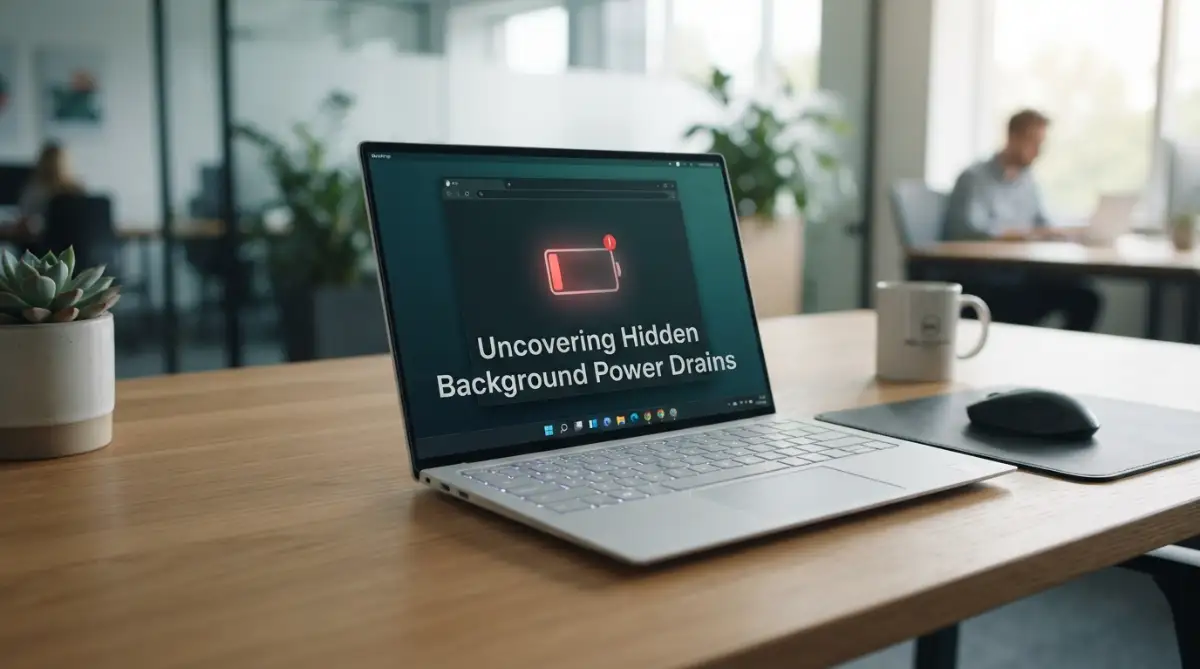
Decoding the Mystery: Why Your Laptop Loses Power While Off
You are probably asking yourself how a machine can use electricity when it is completely powered down. It seems to defy basic logic.
However, modern computers are designed very differently from the electronics of the past. When you click "Shut Down" today, your computer does not actually turn off completely.
Instead, it enters a very deep sleep state, keeping certain hardware active to make your life more convenient later. Let us uncover the science behind this and apply some highly practical steps to fix it right now.
Step 1: Disable Windows Fast Startup (The Hidden Power Consumer)
One of the biggest reasons your battery mysteriously drains overnight is a built-in feature called Windows Fast Startup. Microsoft created this feature to help your system boot up incredibly fast.
When you tell your computer to shut down, Fast Startup prevents a true, complete power-off. Instead, it logs you out of your user account and saves the current state of your operating system into a special file on your hard drive.
To keep this file easily accessible for your next boot, the motherboard and memory still draw a tiny, steady amount of power from the battery.
The Real-Life Analogy
Think of Fast Startup like leaving your car engine idling in the driveway overnight. Sure, the car is parked, and you are not driving it. But because the engine is still softly running, it uses up your fuel so you can drive away faster in the morning.
Over a few hours, this small power draw might not seem huge. But over an entire weekend of being "shut down," your laptop battery will drain significantly.
How to Fix This Issue Today
You can easily disable this feature without harming your computer. In fact, turning it off is highly recommended for the long-term health of your battery.
First, click on your Windows search bar and type Control Panel. Open it, and change the view mode in the top right corner to "Large icons" so you can see all the options clearly.
Next, click on Power Options. On the left side of the screen, you will see a text link that says Choose what the power buttons do. Click on that link.
You will notice that the settings at the bottom are grayed out. To unlock them, click the small blue shield icon that says Change settings that are currently unavailable.
Finally, uncheck the box next to Turn on fast startup (recommended). Click Save changes at the bottom. From now on, when you shut down, your laptop will completely cut power to the memory and motherboard.
If you are more of a visual learner, watch this quick video below to see exactly how to navigate your screen and disable these hidden power drains. Once you finish watching, keep reading below to discover how your Wi-Fi is secretly draining your battery in Step 2!
Step 2: Manage Modern Standby (The Smartphone Effect)
If your laptop was manufactured recently, it likely uses a power state called Modern Standby. This feature was designed to make your computer act more like your mobile phone.
When you press the power button on your phone, the screen goes dark, but the phone is still actively working in the background. It downloads emails, updates apps, and listens for notifications.
Modern laptops try to do the exact same thing. Even when closed and supposedly off, the network card stays active.
The Science Behind Background Drains
When a laptop is in Modern Standby, it periodically wakes up its processor to check for internet connections and system updates. Every time the processor wakes up, it requests a burst of energy from your battery.
If your laptop is stored in a bag where the Wi-Fi signal is very weak, the network card will work twice as hard to maintain a connection. This heavy processing generates heat and rapidly drains the battery cells, even though the screen is entirely black.
Taking Back Control of Your Network
To stop this invisible power drain, you need to tell your computer to stop searching for the internet while it sleeps.
You can easily adjust this in your system settings. Open your main Windows Settings menu by pressing the Windows key and the letter "I" at the same time.
Navigate to System, and then click on Power & battery (or Power & sleep, depending on your version). Look for the section labeled Network connection.
You will find a dropdown menu that asks if you want to stay connected to the network while asleep. Change this setting from "Always" to Never.
By making this simple switch, your laptop will finally stop hunting for Wi-Fi signals in the background. This simple adjustment may noticeably reduce unnecessary overnight battery drain, especially on laptops that support Modern Standby.
Step 3: Turn Off USB Wake Support (The Vampire Devices)
Another massive culprit behind unexplainable battery loss is your USB ports. Most modern laptops feature "Always-On" USB ports, often marked with a tiny lightning bolt icon next to them.
These ports are highly convenient because they allow you to charge your phone or wireless headphones even when the laptop lid is closed. However, this convenience comes at a huge cost to your main battery.
Understanding Vampire Power Draw
Even if you do not have a phone plugged in, leaving a wireless mouse receiver, a USB flash drive, or a printer cable connected can cause a "vampire draw."
The motherboard constantly sends small electrical pulses to these ports to check if a new device needs power. If a device is plugged in, the laptop will continuously feed it electricity, draining your main battery down to zero.
Your Action Plan for USB Ports
The easiest and most practical habit you can build is unplugging all external devices before putting your laptop away. Remove your wireless mouse dongles, external hard drives, and cooling pads.
If you want to permanently stop the system from sending power to these ports while shut down, you can adjust your USB selective suspend settings.
Go back to the Control Panel and open Power Options. Click on Change plan settings next to your active power plan. Then, click on Change advanced power settings.
A small window will pop up. Scroll down until you see USB settings and click the small plus sign to expand it. Expand the USB selective suspend setting option.
Change both the "On battery" and "Plugged in" options to Disabled. Click Apply and then OK.
This forces your computer to completely cut off electrical supply to the USB ports when the system goes into a deep sleep or shutdown state. Your laptop battery will no longer bleed power to forgotten accessories.
For the longest time, my biggest mistake was leaving my wireless mouse dongle plugged in overnight simply because I was too lazy to pull it out. Once I finally realized this tiny piece of plastic was silently eating my battery while I slept, I made it a daily habit to unplug everything, and the positive difference in my morning battery percentage was immediate.
Step 4: Check for Battery Degradation (The Chemical Reality)
Sometimes, the settings on your computer are perfectly optimized, but the hardware itself is physically exhausted. Laptop batteries are made of lithium-ion cells, which rely on chemical reactions to store and release electricity.
Over time, these internal chemicals naturally degrade. Every time you drain your battery from 100% down to zero, it counts as one full charge cycle.
How Batteries Age Over Time
Most standard laptop batteries are designed to last for about 500 to 1000 charge cycles before their capacity severely drops.
Imagine your battery as a large bucket of water. When it is brand new, the bucket is completely solid and can hold a full gallon. As it ages, small chemical crystals build up inside, taking up physical space.
Eventually, even though the computer says the battery is charged to "100%", the bucket can only actually hold half a gallon of water. Furthermore, aged batteries develop internal resistance, causing them to leak power naturally even without any system drain.
Generating a Battery Health Report
You do not need to guess if your battery is physically failing. Windows has a secret, built-in tool that will give you an exact medical report of your battery's health.
To use this, right-click on your Windows Start button and select Command Prompt (Admin) or Windows PowerShell (Admin) or Terminal (Admin).
When the black or blue text window opens, type exactly this command: powercfg /batteryreport and press Enter.
The system will instantly generate an HTML file and tell you exactly where it is saved on your hard drive (usually in your main user folder).
Open your File Explorer, locate this file, and double-click it. It will open in your web browser like a normal webpage.
Scroll down to the section called Installed batteries. Look closely at two specific numbers: the Design Capacity and the Full Charge Capacity.
The Design Capacity is how much power your battery held when it was brand new in the factory. The Full Charge Capacity is how much it can actually hold right now.
If the Full Charge Capacity has dropped significantly compared with the Design Capacity, replacing the battery is usually the most effective long-term solution. It indicates that the battery has reached the end of its useful lifespan. In this case, replacing it with a genuine battery is the best way to restore reliable performance.
Step 5: Disable Hidden System Wake Timers (The Midnight Workers)
Even when you think your computer is entirely asleep, Windows has a habit of scheduling its own tasks. These are known as system wake timers.
Microsoft programmed the operating system to perform heavy maintenance while you are supposedly not using the device. This usually happens in the middle of the night.
Your laptop will quietly turn its processor on at 3:00 AM to download massive system updates. It might also run a full virus scan or defragment your hard drive while sitting in your backpack.
Because your laptop is closed and trapped in a bag, the cooling fans cannot pull in fresh air. The battery gets extremely hot while pushing out power for these heavy tasks, which permanently damages the battery cells.
Taking Control of Your Maintenance Schedule
You need to tell Windows that it is strictly forbidden from waking up your machine without your permission.
Open your Control Panel and navigate back to the Power Options menu. Click on Change plan settings next to your active power plan, and then open the Change advanced power settings menu.
In this new window, scroll down until you find a section called Sleep. Click the small plus icon to expand it.
Look for the option named Allow wake timers. You will see settings for both "On battery" and "Plugged in".
Change the "On battery" option to Disable. By doing this, you guarantee that no random software update will silently eat your battery power overnight.
If you want to read more about how background processes behave, you can explore the official Windows power management documentation provided by Microsoft.
Step 6: Turn Off "Wake on LAN" Network Settings
Corporate environments often use a specific networking feature called Wake on LAN. This allows IT administrators to remotely turn on office computers to install software over the weekend.
However, many consumer laptops ship with this setting enabled by default. When enabled, your network card stays constantly active, waiting for a "magic packet" of data to wake up the system.
Just like a security guard staying awake all night to watch a door, your network adapter constantly draws a small amount of electricity from the main battery.
How to Shut Down the Network Guard
To stop this endless power drain, we need to adjust your network adapter properties. Right-click on your Windows Start menu and select Device Manager.
Look for the category named Network adapters and click the arrow to expand the list. Find your main Wi-Fi or Ethernet adapter (usually containing the word "Intel", "Realtek", or "Broadcom").
Right-click on your adapter and select Properties. A new window will pop up with several tabs at the top.
Click on the Power Management tab. You will see a checkbox that says Allow this device to wake the computer.
Uncheck this box immediately and click OK. Your network card will now properly go to sleep when you shut down the machine.
Step 7: Explore Your BIOS for Deep Hardware Switches
If you have tried all the software steps and your battery still drains, we need to look at the motherboard itself. The BIOS (or UEFI) is the core software that controls your hardware before Windows even starts.
Many motherboards have a feature called "USB Charge" or "Always On USB" buried deep inside the BIOS. This overrides your Windows settings and forces the battery to supply power to USB ports permanently.
To check this, you must restart your computer. As soon as the screen goes black, rapidly press the BIOS key for your specific brand (usually F2, F12, Delete, or Esc).
Once you are in the BIOS menu, look for a tab named Power Management, Advanced, or System Configuration. Use your keyboard arrows to navigate.
Look for any settings mentioning "USB PowerShare", "Always On USB", or "ErP Ready". If you find an ErP setting, you want to Enable it.
Enabling ErP forces the motherboard to consume less than 1 watt of power when shut down. If you see "USB PowerShare", make sure you Disable it. Save your changes and exit the BIOS.
For a deeper understanding of how these hardware states affect long-term chemistry, you can review comprehensive battery care studies created by industry engineers.

The Dangerous Battery Traps You Must Avoid
Fixing your settings is only half the battle. Many people unknowingly practice terrible habits that completely destroy their battery health over time.
If you continue making these daily errors, your battery will lose its capacity to hold a charge, regardless of how perfect your Windows settings are. Let us walk through the most common traps and how to avoid them starting today.
1. Using Fake "Battery Optimizer" Software
The internet is flooded with free software claiming to double your battery life. These programs are almost always a complete scam.
They stay running in your background permanently, monitoring your usage. Ironically, the act of constantly monitoring your system uses extra processor power and drains the battery faster.
Worse yet, many of these free optimizers secretly package adware or spyware. Always rely on the built-in Windows power settings instead of downloading unknown third-party tools.
2. Leaving the Laptop in Extreme Heat
Lithium-ion batteries have a massive weakness to high temperatures. Heat aggressively speeds up the chemical degradation inside the battery cells.
Leaving your laptop in a parked car during a hot summer day is one of the worst things you can do. The internal temperature of a car can easily reach levels that permanently cook the battery chemistry.
Even placing your laptop on a soft bed or pillow while working is dangerous. The fabric blocks the cooling vents, trapping heat inside the chassis and slowly baking the battery. Always use a hard, flat surface.
3. Ignoring Swollen Battery Warning Signs
Sometimes a failing battery will physically expand and swell up like a balloon. This happens when the internal chemicals break down and release toxic gasses.
You might notice your trackpad popping up, or the keyboard feeling weirdly curved. Your laptop might also wobble when placed on a flat table.
Ignoring these warning signs can be dangerous because a swollen battery may become a serious safety hazard. If you notice any physical swelling, stop using the laptop immediately and contact the manufacturer or a qualified technician for a replacement. A swollen battery is a serious fire hazard and should never be ignored.
4. Draining the Battery to Zero Every Day
Many years ago, old nickel-based batteries required you to drain them completely to zero before recharging. People called this "battery memory," and the habit stuck around.
However, modern lithium-ion batteries absolutely hate being drained to zero. Completely discharging a modern laptop battery puts massive physical stress on the internal cells.
If you frequently push your laptop until it forces itself to shut down, you are cutting months off the battery's lifespan. Try to plug in your charger as soon as the battery drops down to 20%.
5. Keeping It Plugged In 24/7 Without Limiters
On the opposite end, leaving your laptop plugged into the wall 100% of the time is also bad. Holding a battery constantly at maximum voltage creates ongoing heat and chemical stress.
If you only use your laptop at a desk, the battery never gets to exercise its charge cycles. Over time, the maximum capacity will shrink drastically.
Many laptop brands like Asus, Lenovo, and Dell include built-in battery limiters in their manufacturer software. You can set the laptop to stop charging at 80%, which drastically extends the lifespan of the battery for desk users.
Reclaim Your Laptop's Power Today
You do not have to live with constant power anxiety anymore. You now understand exactly why your device was losing power overnight, and more importantly, you know how to stop it.
By taking a few minutes to disable Fast Startup, manage your network settings, and unplug your USB devices, you are taking back control of your hardware. You take steps to protect your digital assets against threats, and applying easy security steps to secure your crypto wallet requires the exact same proactive mindset as securing your laptop's hardware settings.
You are simply stopping the invisible leaks that drain your resources. Start applying these simple changes right now.
Go into your Control Panel, adjust your sleep states, and generate a health report for your battery. It only takes five minutes to set up, but the rewards will last for the entire lifespan of your computer.
You will finally be able to close your laptop lid on a Friday, open it on a Monday, and see that beautiful, full green battery icon waiting for you. Get your peace of mind back, and enjoy a laptop that actually works when you need it most.
Dealing with random power loss used to ruin my mornings, but taking just a few minutes to adjust these hidden settings completely solved the issue for me.
After applying these changes, monitor your battery level for a few days. If the problem continues, it may be related to battery health or hardware, and it is worth contacting your laptop manufacturer or a qualified repair technician.
After applying these changes, monitor your battery level for a few days. If the problem continues, it may be related to battery health or hardware, and it is worth contacting your laptop manufacturer or a qualified repair technician
Quick Summary & Key Takeaways
Before trying advanced troubleshooting, check a few common settings that often cause battery drain even when a laptop appears to be completely shut down. These simple checks can save time and may solve the problem without replacing the battery or visiting a repair center.
1. Turn Off Fast Startup
Fast Startup can keep some hardware components partially active after shutdown. Disabling it may reduce unnecessary battery drain.
2. Disconnect External Devices
USB drives, wireless receivers, and other accessories may continue drawing power even after the laptop is turned off. Unplug everything before shutting down.
3. Update BIOS and Drivers
Laptop manufacturers often release firmware updates that improve power management and fix shutdown-related battery issues.
4. Check Battery Health
An aging battery naturally loses charge faster. Use your laptop's battery health report to determine whether the battery is still performing normally.
5. Shut Down Properly
Always use the operating system's Shut Down option instead of forcing the power off. Proper shutdown helps ensure all background processes stop correctly.
Frequently Asked Questions
Many users notice unexpected battery loss after shutting down their laptops. Here are answers to some of the most common questions.
Why does my laptop battery lose charge even when it is shut down?
This usually happens because of features like Fast Startup, USB power delivery, Wake-on-LAN, outdated BIOS settings, or natural battery self-discharge. A failing battery can also contribute to faster power loss.
Is it normal for a laptop battery to drain while turned off?
A very small amount of battery loss over several days is normal. However, losing more than about 5–10% overnight or within a day may indicate a power management or battery issue.
Can Fast Startup cause battery drain?
Yes. Fast Startup saves part of the system state to speed up boot time, but on some laptops it may prevent a complete shutdown and continue using a small amount of power.
Should I replace my battery if it drains while shut down?
Not immediately. First, check your battery health, update BIOS and drivers, and disable power-related features. Replace the battery only if testing shows that its capacity has significantly deteriorated.
How can I stop battery drain when my laptop is turned off?
Disable Fast Startup, unplug external devices, update BIOS and chipset drivers, check your battery's health, and review BIOS settings such as USB charging and Wake-on-LAN. These steps solve the problem for many users.
Disclaimer: The information provided in this article is for educational and informational purposes only. Adjusting system settings, BIOS, or hardware involves a certain level of risk. Always ensure you follow your manufacturer's specific guidelines before making advanced changes. We are not responsible for any hardware damage or data loss that may occur. If you suspect a swollen or physically damaged battery, contact a certified technician immediately to avoid fire hazards.