Reading Time: 12 Minutes
Difficulty Level: Beginner to Intermediate
Reviewed By: FinanceInfoIn Editorial Team
The Agony of the Offline Disconnect
I still remember sitting in a stuffy conference room with exactly ten minutes left before a massive client pitch. My Windows laptop held the finalized 50GB video presentation, but my partner needed it immediately on her Mac to run the projector display. Suddenly, the office Wi-Fi completely dropped, leaving us staring at our screens in total panic. I felt a tight knot in my stomach as I desperately dug through my bag looking for a random USB stick.
That sinking feeling of being totally stuck just because two machines could not talk to each other was completely overwhelming. I realized right then that relying solely on cloud storage for heavy file transfers is a massive mistake. When you need to move gigabytes of data and the internet goes down, you are entirely on your own.
The struggle to bridge the gap between Microsoft and Apple ecosystems is a common headache for many professionals today. Content creators, videographers, and office workers deal with this exact frustration every single week. You try to plug in a hard drive, only to find out it is formatted incorrectly and locked as "read-only."
You waste hours trying to upload massive project folders to a cloud service, dealing with slow upload speeds and sudden connection drops. This constant friction not only drains your productivity but also destroys your mental peace when deadlines are approaching. People just want a reliable, invisible pipe to move their digital heavy lifting from point A to point B without any extra stress.
Finding a way to share data across platforms without relying on an active web connection gives you complete control over your workflow. It saves you from network bandwidth limits, protects your privacy, and ensures you are never left helpless during an internet outage.
Table of Contents
- The Agony of the Offline Disconnect
- Quick Summary
- Key Takeaways
- Building a Direct Physical Bridge (The Ethernet Method)
- The Universal Translator: Mastering External Drives
- Creating an Invisible Local Network (Ad-Hoc Setup)
- The High-Speed Expressway: Thunderbolt Bridging
- Wrapping Up Your Data Journey
Quick Summary
Moving large data folders between different operating systems does not require a web connection or expensive cloud subscriptions. By utilizing physical cables like Ethernet or Thunderbolt, you can build a direct pipeline for incredibly fast offline sharing. Formatting an external drive to a universal language like exFAT also provides a seamless physical transfer method. These techniques ensure your data remains secure, private, and unaffected by internet outages.
Key Takeaways
- Direct wired connections offer the fastest and most secure transfer speeds for heavy data.
- Hard drives must be formatted to a specific file system to work on both Apple and PC ecosystems simultaneously.
- Local network sharing protocols allow computers to talk directly to each other without needing active web access.
- Relying on offline methods completely eliminates file size limits imposed by cloud storage platforms.
Building a Direct Physical Bridge (The Ethernet Method)
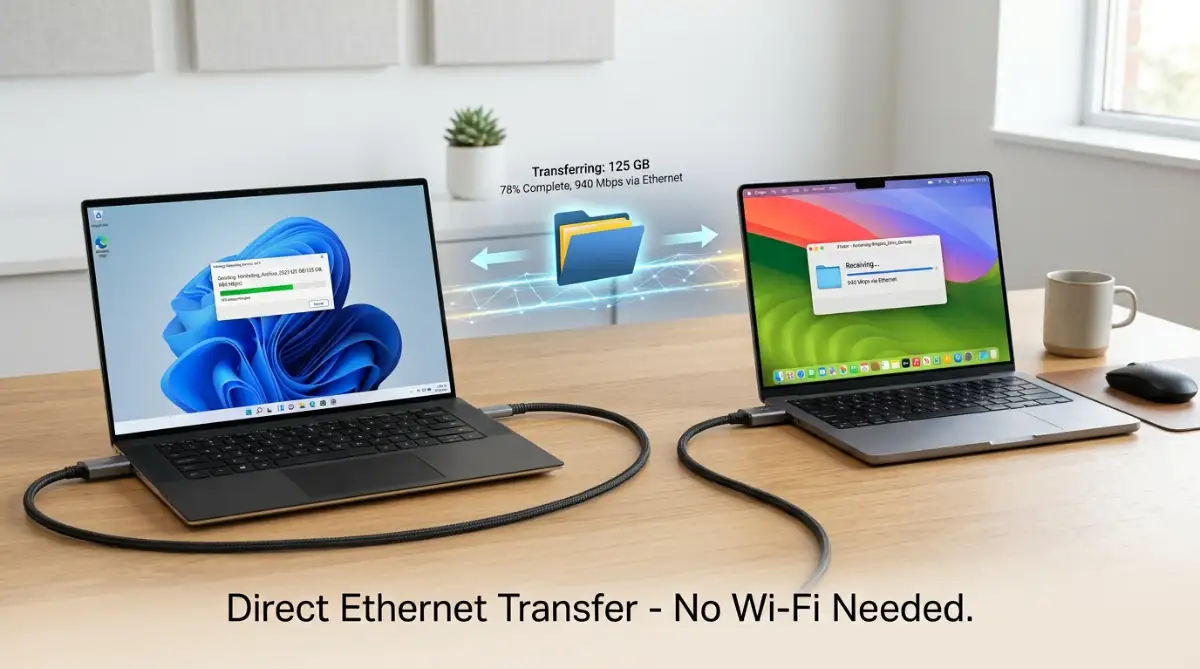
When you need to move hundreds of gigabytes, wireless solutions can sometimes feel like trying to drain a swimming pool with a drinking straw. A direct wired connection using a simple Ethernet cable is one of the most reliable and fastest ways to link a PC and a Mac. You are essentially building a private, high-speed highway that only your two machines can access.
This method requires zero web connectivity and bypasses your standard router entirely. To get started, you just need a standard LAN cable to plug directly into the ports of both machines. If your modern laptops lack these specific ports, inexpensive USB to Ethernet adapters work perfectly well.
Once physically connected, you have to help the two operating systems recognize each other. Think of it as formally introducing two people who speak slightly different dialects. On your PC, navigate to the Network and Sharing Center to configure a static IP address.
Expert Tip: Always double-check that you turn off the password-protected sharing feature temporarily in your PC's advanced network settings. This simple tweak often prevents those annoying "access denied" errors when the Apple machine tries to peek into the shared folder.
Assigning an IP like "192.168.1.2" on the PC gives it a specific house number on this new private street. Next, move over to the Apple device and open the Network settings. You will set its IP address to something similar, like "192.168.1.3", ensuring they are sitting in the same local neighborhood.
Once the addresses are set, simply right-click the specific folder on your PC that you want to share. Head into the properties, select the sharing tab, and grant access to "Everyone" on the local network.
Watch This Quick Setup Guide!
If you are a visual learner, setting up an IP address for the first time can seem a bit technical. Check out this quick video below that walks you through exactly where to click on both systems.
Now, jump back to your Apple laptop, open Finder, and hit "Connect to Server" from the Go menu. Type in "smb://192.168.1.2" (the exact IP you gave the PC) and hit enter. Your heavy folders will suddenly appear on the screen, ready to be dragged and dropped at blazing fast speeds.
The Universal Translator: Mastering External Drives
Sometimes the most practical approach is simply moving data physically using a high-capacity external hard drive or solid-state drive (SSD). However, if you have ever plugged a standard PC drive into an Apple computer, you probably noticed a major roadblock. You can view the documents, but you cannot edit them or add new ones to the drive.
This happens because out of the box, these two companies use completely different, proprietary file systems. Windows prefers a system called NTFS, while Apple uses a format known as APFS or Mac OS Extended. Imagine these formats as two completely different languages; one can read the other's book, but cannot write a reply.
The secret to seamless physical transfers is formatting your portable drive to act as a universal translator. This specific format is called exFAT, and it plays perfectly nice with both major ecosystems without any extra software.
I learned this lesson the hard way during a massive photography project a few years ago. I spent hours copying raw image files onto my favorite portable SSD, only to realize my client’s Apple machine could not save the edited versions back to my drive. That single mistake cost us an entire afternoon of work, and I have never forgotten to format my drives correctly since that day.
To prepare your portable storage, plug it into either computer and locate the formatting utility. On a PC, you simply right-click the drive in File Explorer and select "Format," choosing exFAT from the dropdown menu.
Be incredibly careful before you hit the start button on this process. Formatting completely wipes the entire storage device clean, destroying any existing data instantly. Always ensure the device is totally empty or fully backed up somewhere safe before making the conversion.
Once formatted to exFAT, your portable SSD becomes the ultimate offline messenger. You can drag massive 4K video exports onto it from your PC, unplug it, and immediately drop those exact files onto your colleague's desktop. It completely removes the need for IP configurations or network cables.
Creating an Invisible Local Network (Ad-Hoc Setup)
What happens if you do not have any cables, adapters, or spare hard drives lying around your workspace? You can actually turn your computer into its own temporary router to bridge the gap wirelessly. This is known as creating an Ad-Hoc network, and it acts exactly like a localized Wi-Fi hotspot without providing actual web access.
This method is incredibly helpful when you are working in a remote location, like a coffee shop with terrible connectivity or on a long train ride. Your PC acts as the main hub, broadcasting a hidden signal that your Apple device can detect and connect to.
Expert Tip: Keep your devices as physically close to each other as possible when using an Ad-Hoc connection. Wireless interference from smartphones or other electronics can severely throttle your transfer speeds during heavy data movement.
To set this up on modern systems, you can utilize the built-in mobile hotspot feature found in your settings menu. Simply toggle the hotspot on, set a secure password, and ensure it is broadcasting on a clear channel.
Your Apple machine will see this new local hotspot in its regular Wi-Fi menu. Once connected, the two computers are practically sitting in the same digital room. You can then use the exact same SMB server connection method we discussed in the Ethernet section.
While this local wireless bridge is highly convenient, it does come with a small compromise regarding raw speed. It will never be as fast as a direct physical cable, especially when moving folders larger than twenty gigabytes. However, for mid-sized project folders and heavy photo albums, it is an absolute lifesaver.
The High-Speed Expressway: Thunderbolt Bridging
If you are dealing with absolutely massive datasets, standard gigabit cables might still feel a bit too slow for your deadlines. This is where Thunderbolt technology steps in, offering a premium, ultra-fast expressway between your devices. Thunderbolt ports look identical to standard USB-C ports, but they carry significantly more data bandwidth.
If both of your modern laptops support Thunderbolt 3 or 4, you can link them directly with a single compatible cable. The underlying operating systems are smart enough to recognize this specific connection as a high-speed network bridge instantly.
Setting up a Thunderbolt bridge requires going into the network preferences on your Apple machine. You will find an option to add a new network interface, where you can specifically select the Thunderbolt bridge.
The PC will generally auto-detect this connection, assigning itself a local IP address in the background. From this point, the file-sharing process remains exactly the same as any other local network setup. You simply target the shared folder and watch your massive gigabytes transfer in a fraction of the usual time.
This specific method is heavily favored by professional video editors and 3D animators who work with uncompressed media. It effectively eliminates the bottleneck of traditional networking, making the external computer feel almost like an internal hard drive. Embracing these powerful offline transfer methods will completely change how you handle heavy digital workloads forever.
Mastering Pro-Level Data Transfers
Now that we understand the basics of bridging two different ecosystems, we need to ensure these methods work perfectly every single time. Moving large folders between Microsoft and Apple systems requires a bit of finesse. The last thing you want is a stalled transfer when you are ninety percent done.
Pro Tip: Always disable your antivirus firewall temporarily if the two machines refuse to see each other on a local network. Many security programs automatically block incoming traffic from unrecognized operating systems, causing endless frustration.
Let me share a quick reality check about long transfers. When your machine is running heavy operations, background processes often consume valuable resources. This is exactly why you might experience unexpected power drops or sudden shutdowns.
If your system turns off mid-transfer, it can permanently corrupt your entire project file. I highly recommend learning how to handle device power management properly before starting a massive data move. Keeping both machines securely plugged into a reliable wall outlet is absolutely mandatory.
Let us look at how you can guarantee maximum speeds and stability during your workflow.
When you use an Ad-Hoc wireless network, physical obstacles will heavily disrupt your localized signal. A thick concrete wall between your two devices can instantly cut your transfer speed in half.
If you frequently struggle with these kinds of environmental barriers, understanding how to deal with weak signals is incredibly helpful. Simply keeping the laptops on the exact same desk removes most wireless interference and keeps your connection rock solid.
Quick Action Checklist
- Format your portable storage device to exFAT before copying anything.
- Use a direct Ethernet connection for folders exceeding fifty gigabytes.
- Turn off sleep mode on both computers to prevent mid-transfer drops.
- Temporarily disable any strict third-party firewall software.
- Verify the final file size on the receiving machine to ensure a complete copy.

The Hidden Traps That Corrupt Your Data
Moving data across different platforms feels like walking through a minefield if you ignore the basics. Many people assume they can just yank a cord out the moment a loading bar hits one hundred percent. This single mistake has ruined more project files than any software bug I have ever encountered.
When you pull out a portable drive without safely ejecting it, you interrupt background writing processes. The operating system might look finished on the screen, but it is often still organizing the invisible directory fragments. This immediately leads to corrupted partitions, leaving your external SSD completely unreadable on any machine.
Another massive pitfall is ignoring the formatting warnings. I once watched a friend plug his only backup drive into a new machine and hit "initialize" without reading the prompt. That single click erased months of irreplaceable family photos in a split second.
Always double-check what file system you are dealing with before confirming any disk utility alerts. You can read more about file system architectures directly on Microsoft's official storage documentation to understand exactly how data is organized safely.
Sometimes, your hardware acts up in weird ways, like a phone battery dropping despite being plugged in tightly. Laptops do the exact same thing if their internal ports are worn out or full of dust.
A loose port connection will drop your network bridge over and over again. Always inspect your physical ports and use compressed air to keep them perfectly clean. Understanding these hardware quirks will save you from major headaches down the road.
Your Blueprint to Stress-Free Data Sharing
You no longer have to rely on a working internet connection just to share your own files. Setting up a direct physical bridge gives you absolute control over your digital workspace. It is incredibly freeing to know you can move massive data folders in minutes, no matter where you are.
Whether you choose a simple LAN cord or a high-speed portable SSD, the power is entirely in your hands. You just need to follow the proper formatting rules and treat your hardware with respect. Once you practice these methods a few times, they will become second nature to your daily routine.
Taking a few minutes to learn these techniques transforms a frustrating roadblock into a seamless experience. If you want to explore more helpful tech insights, checking out our main resource hub is always a great place to start your journey.
I personally wasted so much time waiting on slow cloud uploads before I finally embraced these physical network methods. Taking charge of my own hardware completely changed how I handle tight deadlines. You have the tools, you have the knowledge, and now it is time to build your own high-speed data bridge. Which of these offline transfer methods are you planning to try first? Let me know in the comments below!
Frequently Asked Questions About Cross-Platform File Sharing
Can I use a regular USB charging cable to transfer data between my PC and Mac?
No, standard USB charging cables are typically designed only for power delivery. You need a dedicated data transfer cable, like a Thunderbolt or a bridging cable, to move actual folders.
Why does my Apple computer say the external drive is read-only?
This happens because the external drive is formatted in NTFS, which is the native Microsoft format. You must reformat the drive to exFAT so both systems can freely read and write to it.
Will sharing folders over a local network use my monthly internet data?
Not at all. Local network sharing only uses your router to bounce the signal between the two machines locally. It does not communicate with the outside web or consume your broadband data cap.
Is it possible to directly connect the two machines via Bluetooth for heavy files?
While Bluetooth can technically share small items like photos, it is painfully slow for massive folders. It is highly recommended to use a physical cord or an Ad-Hoc wireless setup instead.
Do I need to buy expensive third-party software to read NTFS drives?
You do not have to buy any extra software if you plan ahead. Simply formatting your portable storage to exFAT makes it universally compatible right out of the box.
What happens if the cable unplugs while I am moving a hundred gigabytes?
The transfer will immediately fail, and the destination folder will contain an incomplete, corrupted file. You will need to delete that broken fragment and start the entire process over again.
Can a direct Ethernet connection carry a virus from a PC to an Apple device?
Yes, malicious software can travel across a local network if one machine is heavily infected. However, viruses built for one operating system usually cannot execute or cause harm on a completely different platform.
Why is my network transfer speed fluctuating so wildly?
Fluctuating speeds usually happen when your computer is trying to run heavy background tasks simultaneously. It can also occur if your router is overheating or if other people on the network are streaming heavy video.
How do I find the specific IP address of my Windows machine?
You can easily find this by opening the command prompt and typing "ipconfig" before hitting enter. The series of numbers next to "IPv4 Address" is exactly what you need to type into your Apple device.
Will creating an Ad-Hoc network drain my laptop battery faster?
Yes, broadcasting a continuous wireless signal forces your Wi-Fi card to work incredibly hard. You should always plug your computer into a wall outlet when running these temporary hotspots to avoid sudden shutdowns.
Trusted Technical Resources
To ensure you get the safest and most accurate hardware guidance, we strictly reference authoritative industry standards. You can verify network protocols through the Apple Official Support Guidelines or explore deep-level system architecture via the Microsoft Tech Community. For detailed information on universal flash storage formatting, check out the SD Association Standards. Professionals handling sensitive data should also consult the National Institute of Standards and Technology for data security practices. If you need clarity on internet privacy during local transfers, the Electronic Frontier Foundation is a fantastic resource. Finally, networking hardware best practices can always be found at the IEEE Standards Association.
Legal Disclaimer & Fair Use
The information provided in this article is strictly for educational and informational purposes only. We do not offer certified technical support, legal advice, or professional IT consulting. While we make every effort to ensure our guides are accurate, hardware and software interfaces change frequently. FinanceInfoIn and its authors hold no liability for any data loss, hardware damage, or security breaches resulting from the application of these methods. Always create a full backup of your important files before attempting any system formatting, port connections, or network configurations.
About the Author
Reviewed by Mithun Halder (Personal Finance & SEO Expert) & The FinanceInfoIn Editorial Team
The FinanceInfoIn Editorial Team researches personal finance, investing, insurance, mortgages, cryptocurrency, and consumer financial topics. Every article is carefully reviewed to provide clear, practical, and trustworthy educational information based on credible sources and industry best practices.
©2026 FinanceInfoIn. All rights reserved.